

Note:
It is not necessary to resolve preflight issues in order to download low resolution proofs; however, preflight fixes are only applied once a component has checked in.
Proof shows bleed, trim and safety lines just like proof mode in Lakeside Scout. The lines appear as layers and you can hide them if needed. Refer to Acrobat's documentation for help with the layers feature.
To view pages as spreads, adjust the page view setting in Acrobat. Refer to Acrobat's documentation for help with the page display feature.
Security restrictions are applied to prevent changing the document; however, you may print if needed.
Images (1 and 8 bit) have been downsampled to 100 dpi in order to decrease the size of the file.
The download link in the email will expire in 7 days from receipt. If applicable, download the requested low resolution proof prior to requesting additional downloads.
Mac users; Control-click on a Mac is similar to a right-click on a Windows computer. Press and hold the Control key while you click an item.
See this link for instructions on downloading high resolution files.
Lakeside Scout offers three options for downloading low resolution proofs for offline review:
Download the entire title (multiple components)
Download an individual component (just the text for example)
Download a single page or continuous pages within an individual component (note; downloading non-continuous pages is not supported at this time)
Download the entire title (all components)
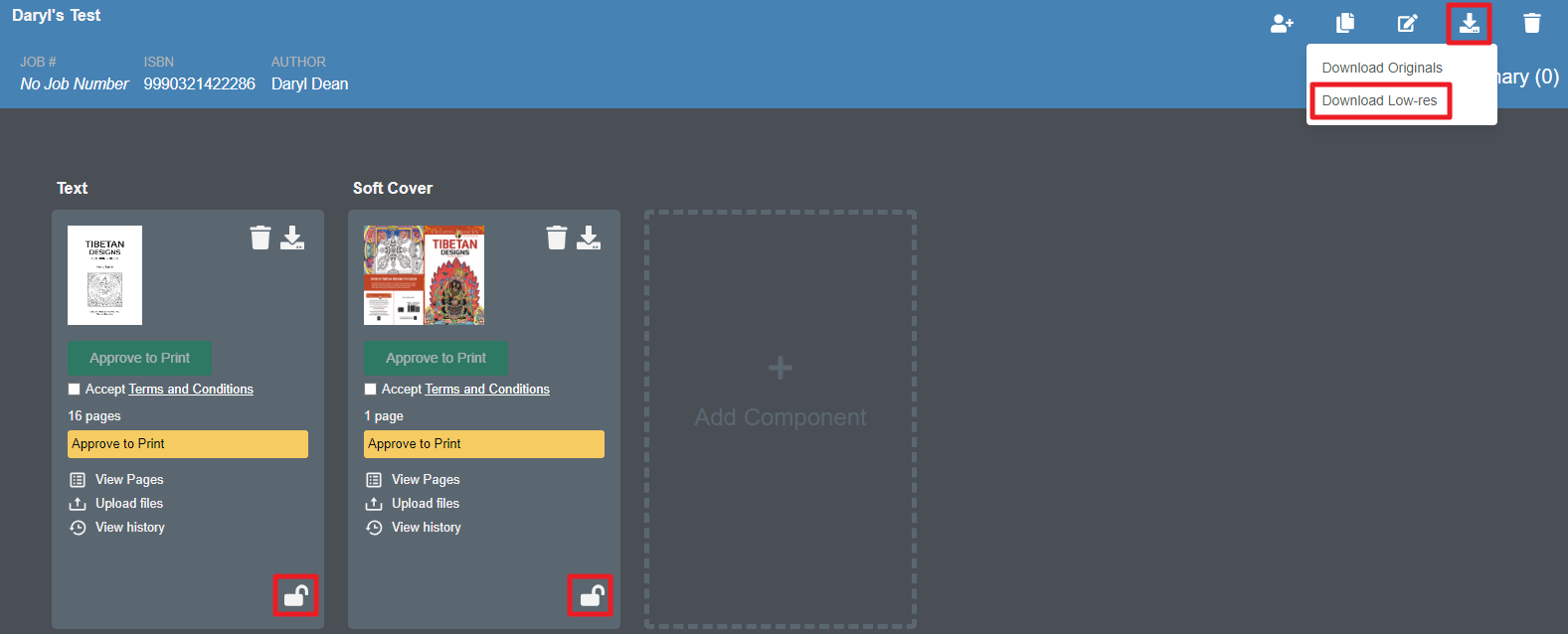
To download the entire title, click on the download icon in the upper-right corner of the title banner. Then, click the Download Low-res option. Note - the title must be checked out as denoted by the unlock icon on the component card. If there are multiple components on a title, as in this example, all components must be checked out.
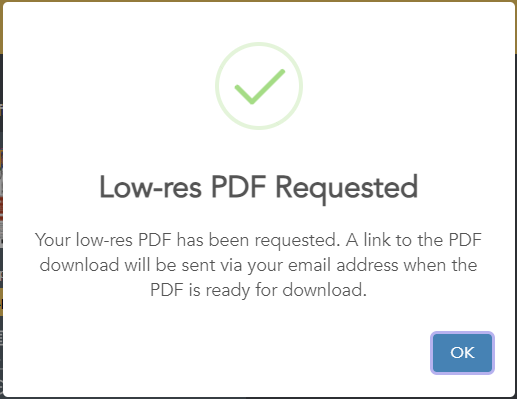
A popup window will inform you the low-res PDF has been requested, and you will receive a separate email for each component when it is ready for download. The email will contain a link to the file. Clicking on that link will download a PDF for that component in the title.
Download an individual component (all text pages for example)
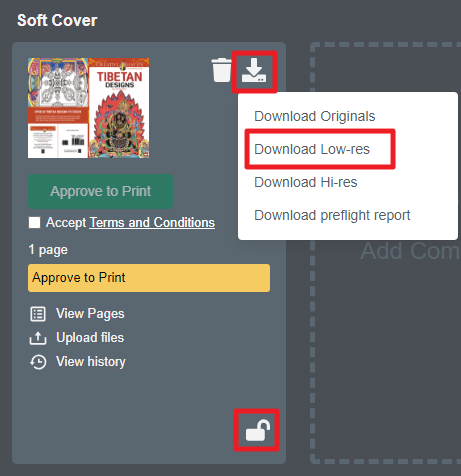
To download an individual component, click on the download file icon on the component card and select the Download Low-res option. Note - the component must be checked out as denoted by the unlock icon on the component card. As with the first method, the Low-res requested pop up window will appear. A PDF for the specific component will download when you click the link in the email.
Download a single page or continuous pages within an individual component (note; downloading non-continuous pages is not supported at this time)
To download an individual page or range of pages, click on the page within the thumbnail view (page 1 is selected in this example as denoted by the blue outline around the thumbnail). Then, right-click and select Download > Low-res. As with downloading an individual component, a popup window will appear informing you a low-res has been requested. A PDF for the specific page(s) will download when you click the link in the email.
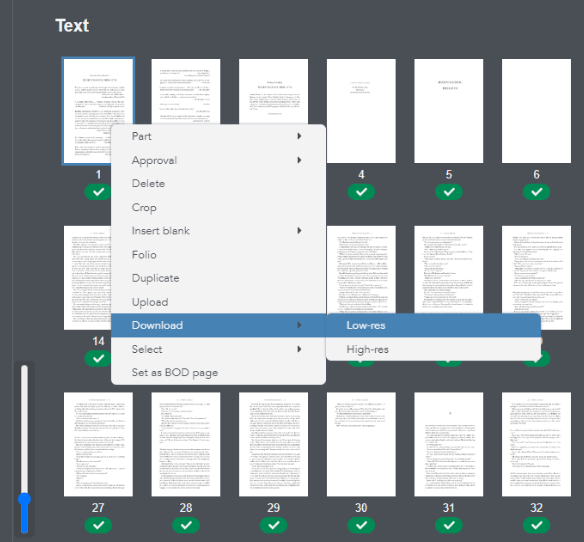
To select continuous pages, click on the first page you want. Press and hold the Shift key. Then, click on the last page you want. All pages in between the first and last page will be selected.