

Note:
See this article for instructions if you need to download low-resolution proofs.
Before downloading high-resolution files, you must resolve any reported preflight warnings and errors on your selected page(s), component, or title.
Preflight fixes are applied prior to creating the high-resolution file. Once a high-resolution file is sent, preflight fixes cannot be undone.
If a title or component contains a high volume of preflight fixes, the file creation process may take longer, as each affected page must be replaced in Lakeside Scout.
To view the high resolution file as spreads, adjust the page view setting in Acrobat. Refer to Acrobat's documentation for help with the page display features.
Download links in the email will expire in 7 days from receipt. If applicable, download the requested high-resolution file prior to requesting additional downloads.
Mac users: Control-clicking on a Mac is equivalent to right-clicking on a Windows computer. Press and hold the Control key while clicking an item.
Lakeside Scout offers several options for downloading high-resolution files:
Download the entire title (multiple components) or an individual component (just the text for example)
Download from a hybrid title (combination of components checked in and out)
Download a single page or continuous pages within an individual component (note: downloading non-continuous pages is not supported at this time)
Download the entire title or an individual component:
Click on the 'Download title files' icon in the upper-right corner of the title banner. Note - the title must be fully checked in as denoted by the lock icon on the component card. If there are multiple components on a title, as in this example, all components must be checked in.
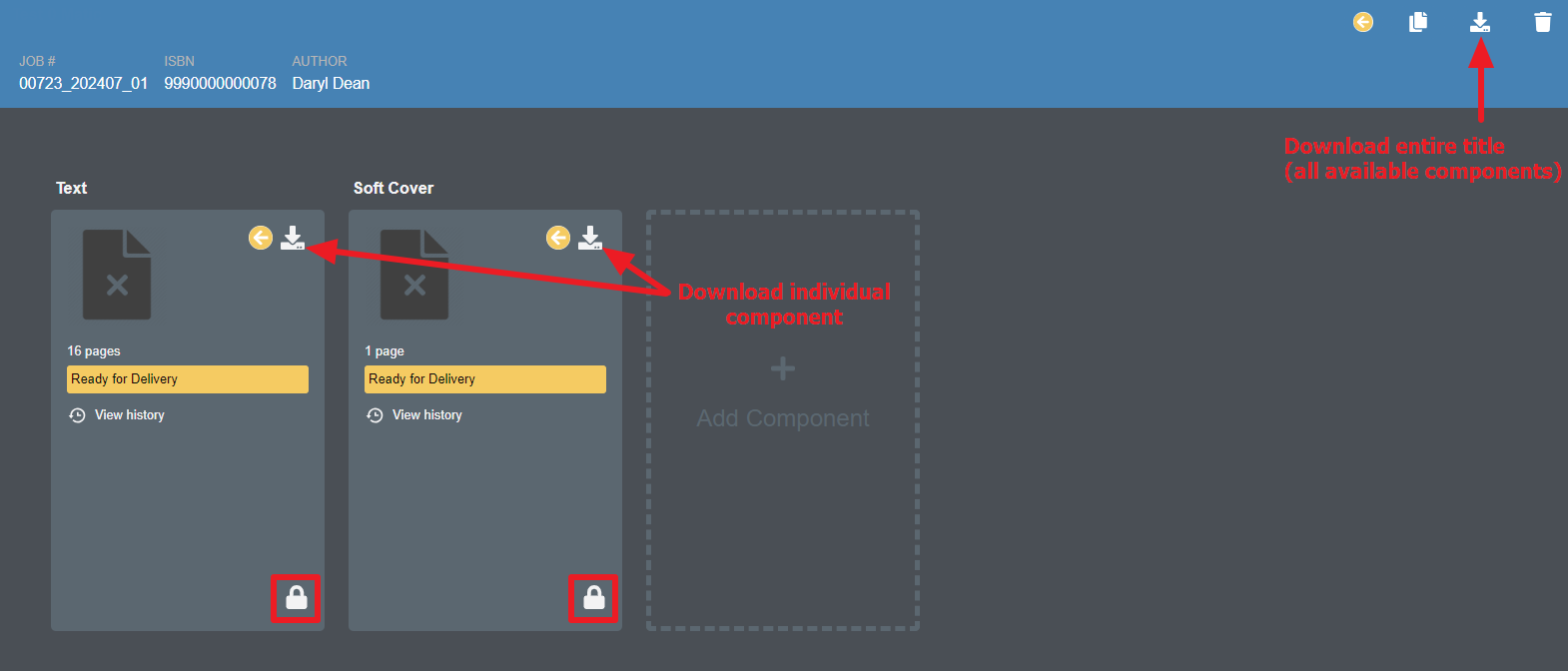
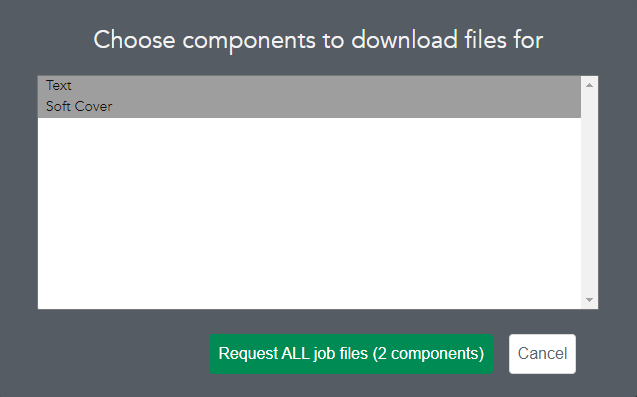
If you choose to download the entire title, a popup window will appear where you can request ALL component files, or you can select only those components needed from the list when more than one component is present. Click the Request button to initiate the process. Optionally, you can click on the Download component files icon on an individual component as shown above if only that component is needed. You will receive an email, with a PDF download link for the requested component(s), when it is ready.
Download from a hybrid title (a hybrid title is a mixture of components checked in and out):
You have the option of downloading when a component is checked in or out.
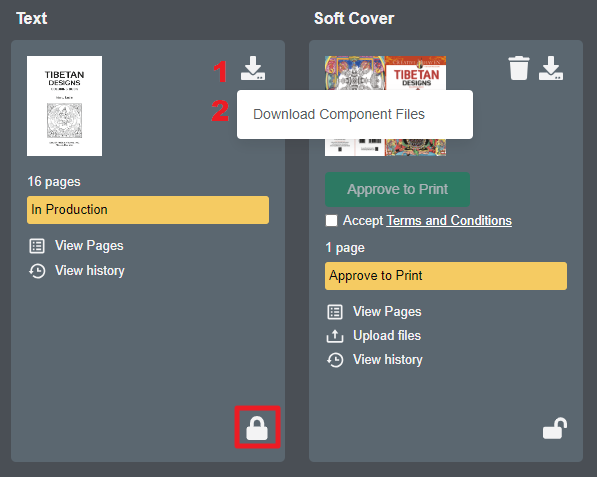
To download a checked in component (indicated by the lock icon in the lower-right corner of the component):
Click on the download icon (1) on the component card and select Download Component Files (2). You will receive an email, with a PDF download link for the requested component, when it is ready.
Note: Any fixes that were requested to the file, (i.e., those reported during preflight) will be reflected in the download file.
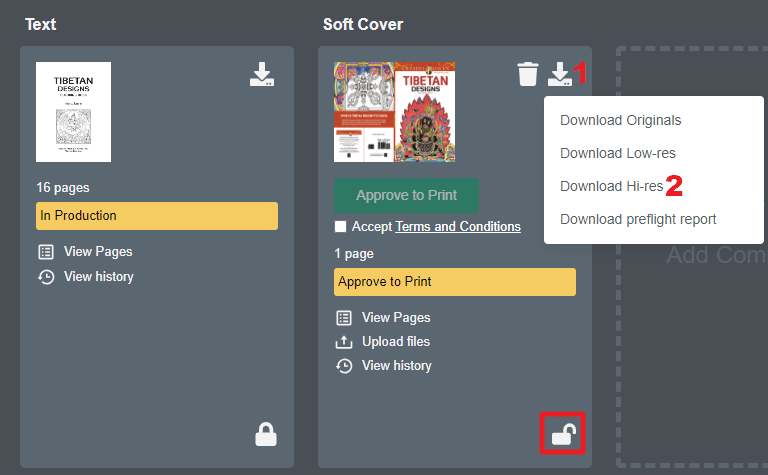
To download a checked out component (indicated by the unlocked icon in lower-right corner on the component):
Click on the download icon (1) on the component card and select Download Hi-res (2). You will receive an email, with a PDF download link for the requested component, when it is ready.
Note: The Download Hi-res option will be available once all preflight warnings and errors are addressed on that component. Any fixes that were requested to the file, (i.e., those reported during preflight) will be reflected in the download file.
Download an individual page or range of continuous pages:
This option is only available on a component that is checked out. Within the thumbnail view, click on the page required (page 1 is selected in the example below as denoted by the blue outline around the thumbnail). Then, right-click and select Download > High-res. You will receive an email, with a PDF download link for the requested page(s), when it is ready.
Note: The Download High-res option will be available once all preflight warnings and errors are addressed on the selected page(s). Any fixes that were requested to the file, (i.e., those reported during preflight) will be reflected in the download file.
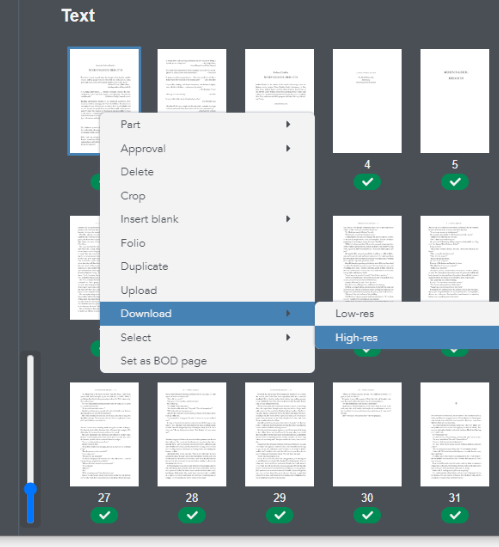
To select continuous pages, click on the first page you want. Press and hold the Shift key. Then, click on the last page you want. All pages in between the first and last page will be selected.