Note - Mac users; Control-click on a Mac is similar to a right-click on a Windows computer. Press and hold the Control key while you click an item.
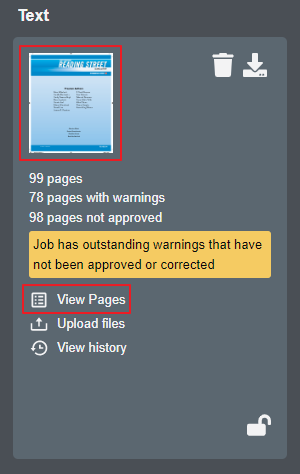
Accessing the thumbnail layout is done by clicking on either the component page thumbnail or the 'View Pages' link.
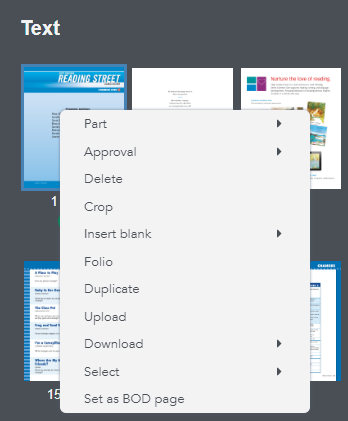
Once the thumbnail layout appears, you can click on a page, then right-click to access its contextual menu. The contextual menu appears as shown here. Some items have their own contextual menu like 'Approval' as indicated by right facing triangles.
Descriptions;
Part - Change a page from one component to another, (e.g., change a caseside page to soft cover).
Approval - Sets approval status to 'Approved' or 'Rejected' (the default status is 'Pending' on newly uploaded pages).
Delete - Deletes selected page.
Crop - Opens page in proof mode for crop and/or scale function. See this article for details.
Insert blank - Inserts a blank either before or after the selected page based on your selection.
Folio - Changes the number underneath the thumbnail. Note - this does not change the print order/sequence. See this article for details.
Duplicate - Creates a duplicate page and inserts it after the selected page.
Upload - Opens the upload pages window.
Download - Download Low-res or Hi-res file (note - pages with warnings and/or errors must be resolved prior to hi-res download).
Select - Selects pages as identified, (i.e., select all or select to last). Helpful in selecting/approving multiple pages quickly.
Set as BOD page - If you opted to use the Born on Date feature, this allows you to override the default page position where it will be printed. See this article for details. Note - You also use this feature to unset the Born on Date page if you set it to a page accidently.
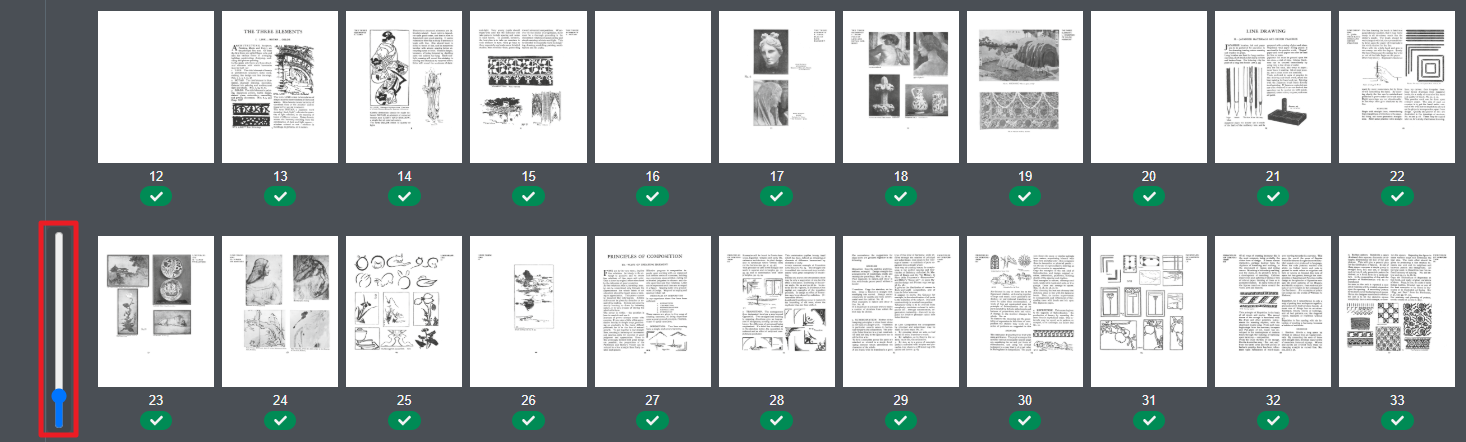
You can also change the size of the thumbnails by clicking and dragging the vertical slider bar (lower-left corner) to achieve the desired magnification/size.