

Note - Mac users; Control-click on a Mac is similar to a right-click on a Windows computer. Press and hold the Control key while you click an item.
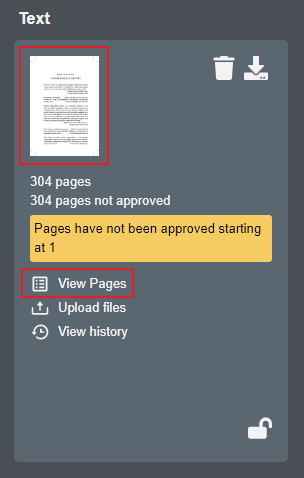
Currently, all proofs within Lakeside Scout must be approved before the file can be checked against the supplied specifications. Accessing the pages list can be done by either clicking on the thumbnail icon or the View Pages link within the component card.
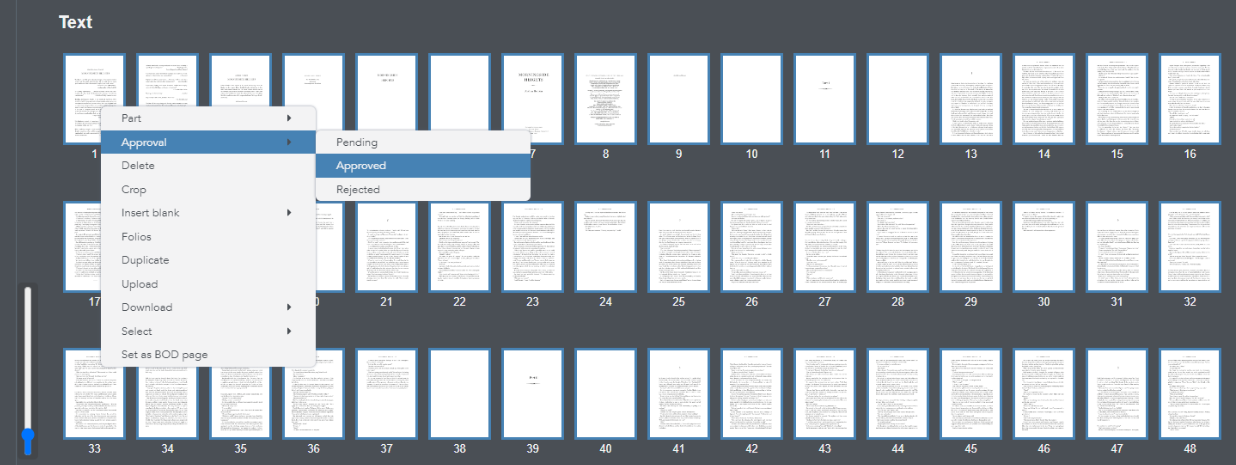
Proof approval requires selecting the pages, right-clicking and setting the Approval state to Approved. The user can select the first page, right-click and Select all from the contextual menu. Optionally, the user can select all of the pages by clicking on the first page, scrolling to the last page, holding the shift button on the keyboard and clicking on the last page.
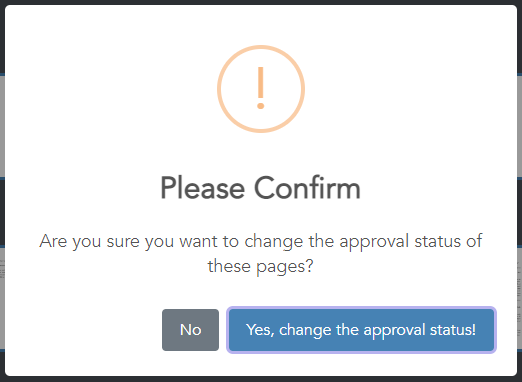
The user will be asked to confirm the approval status.
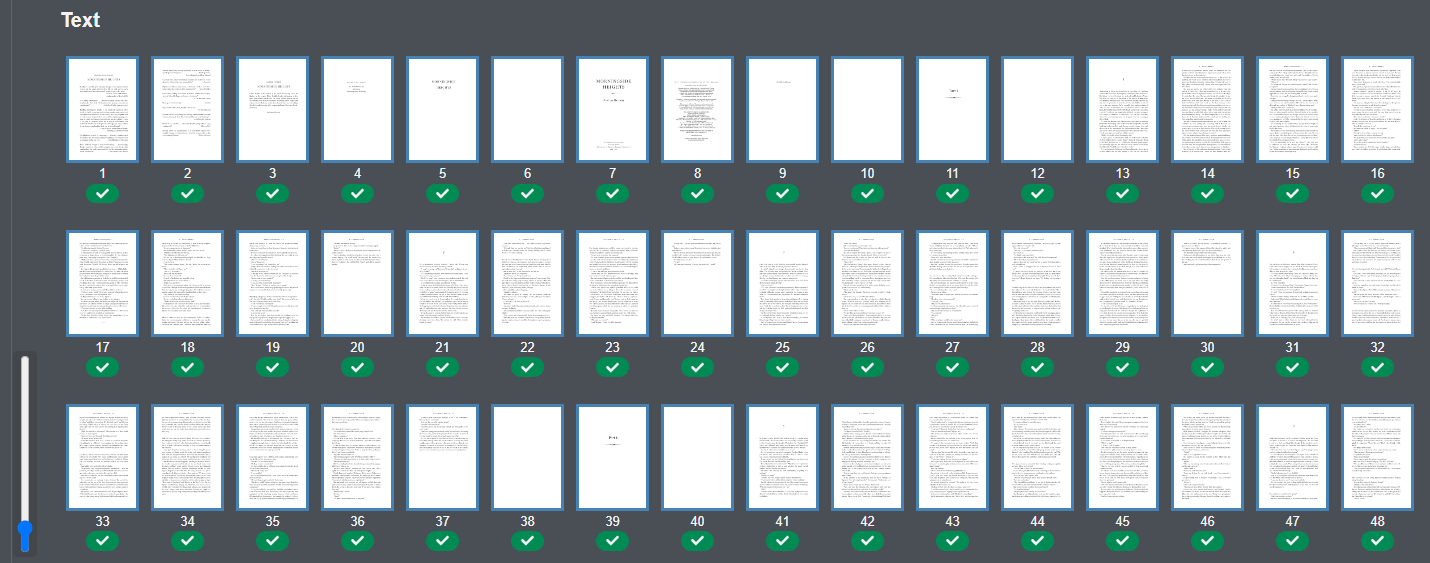
Once all proofs have been approved, a checkbox icon will appear underneath all pages. This process is repeated for all components if applicable.
Once all proofs have been approved, the Approve to Print button will appear on each component card.
Please see the article Approve to Print for details.