

Note - In order to modify a user, you must have an AccountAdmin role.
Each account will have designated users with the ability to manage (i.e., create, edit and delete) their user base. These instructions detail how to edit an existing user. See this article to create a user or this article to delete a user.
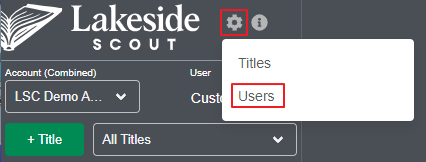
1. From the home page, click on the gear icon. Then, click on Users. Note - a user with the AccountAdmin role can toggle between Titles and Users as needed.
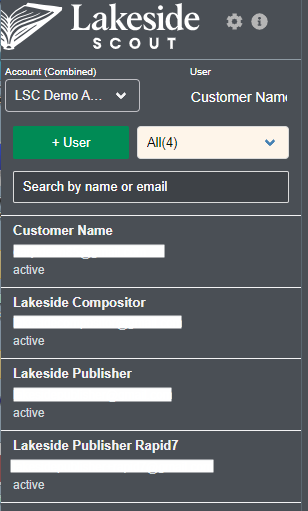
2. Enter a name or email in the Search area. Optionally, you may scroll through the users associated with your account depending on the number of users (note - in the screenshot below, the email addresses are purposely masked out).
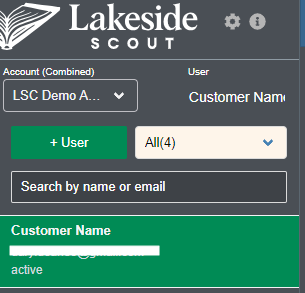
3. Access the account by clicking on the user's account you want to modify (note - in the screenshot below, the email address is purposely masked out).
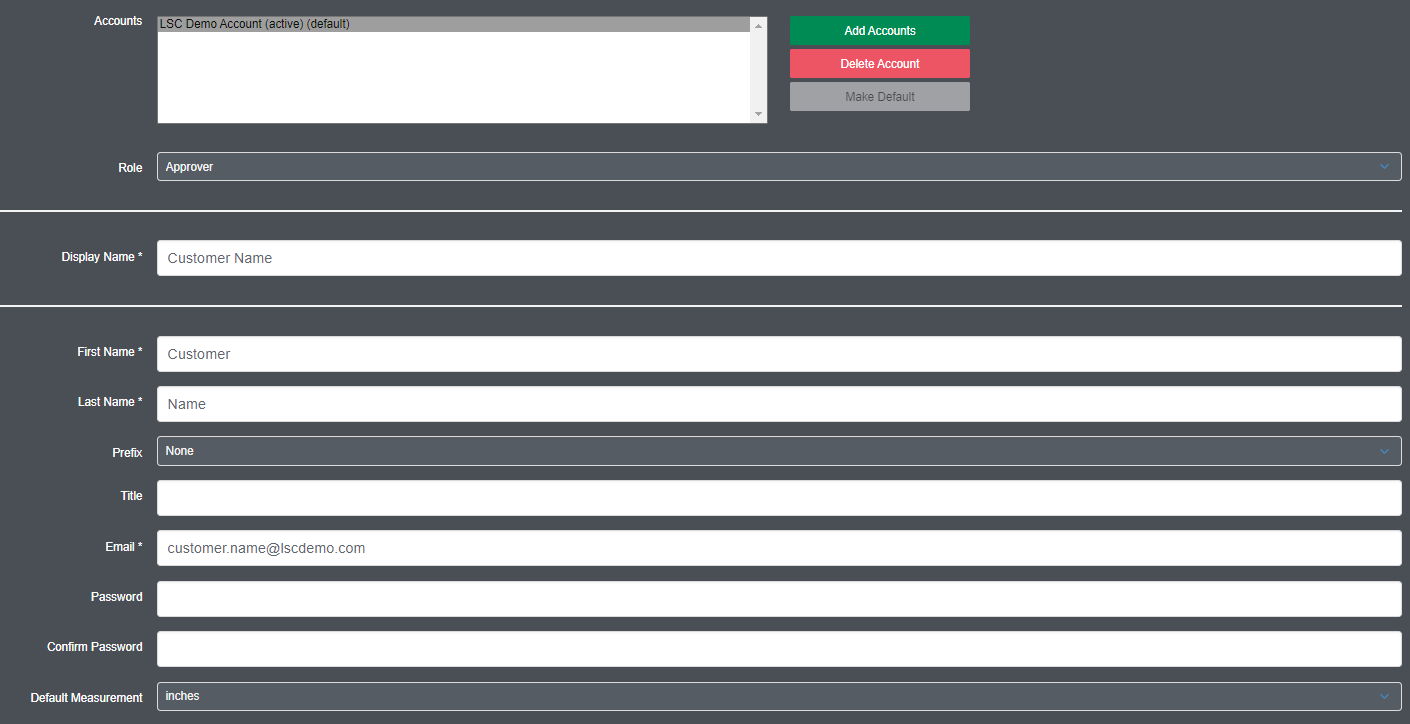
4. With the primary account name selected in the Accounts window, make edits as necessary in the listed fields.
If you are changing the role of the user, see this article for details about specific rights associated with each role.
If you need to change the email address of a user, contact our support staff using the help widget.
5. Click the Save button at the bottom of the page once all changes are complete.