
To access the Helply help widget, locate and click the green Help icon in the bottom right-hand corner of the Lakeside Scout window.

Once clicked, the Helply Interactive window will appear. You may type a question or click one of the button options. We'll detail the buttons, interactive search, and then the ... 3 dots list below.
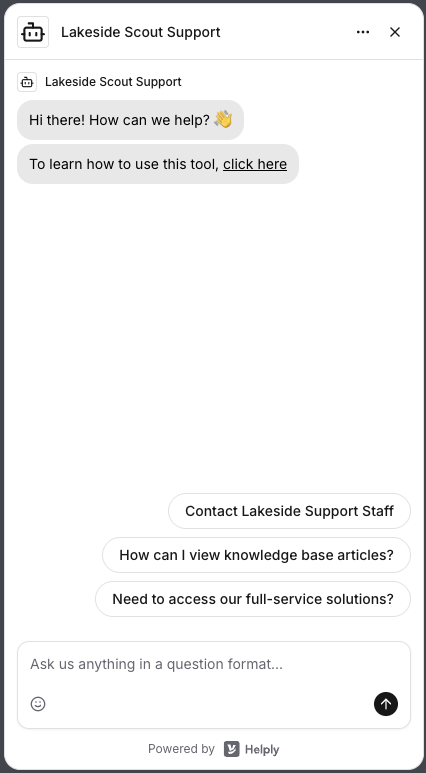
Contact Lakeside Support Staff button
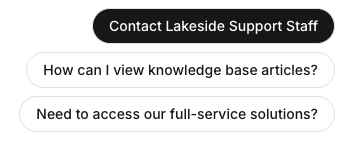
Clicking the Contact Lakeside Support Staff button will bring up a dialog box that will need to be filled out completely. This will create a help ticket for the Lakeside Scout Support to follow up on.
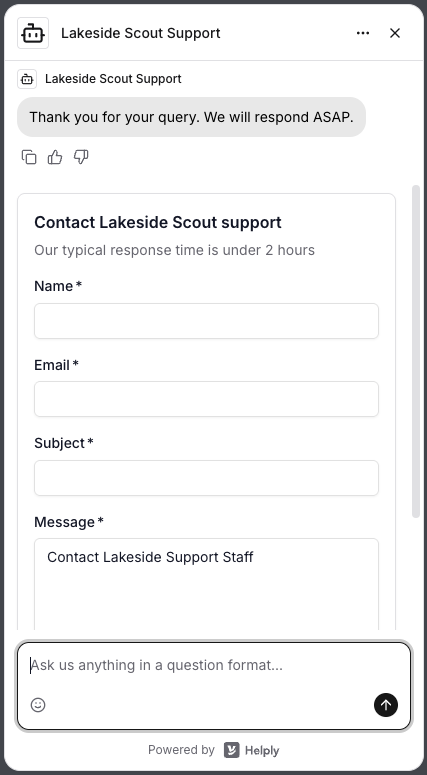
How can I view knowledge base articles? button
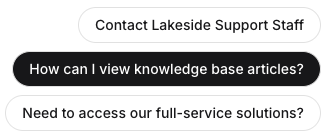
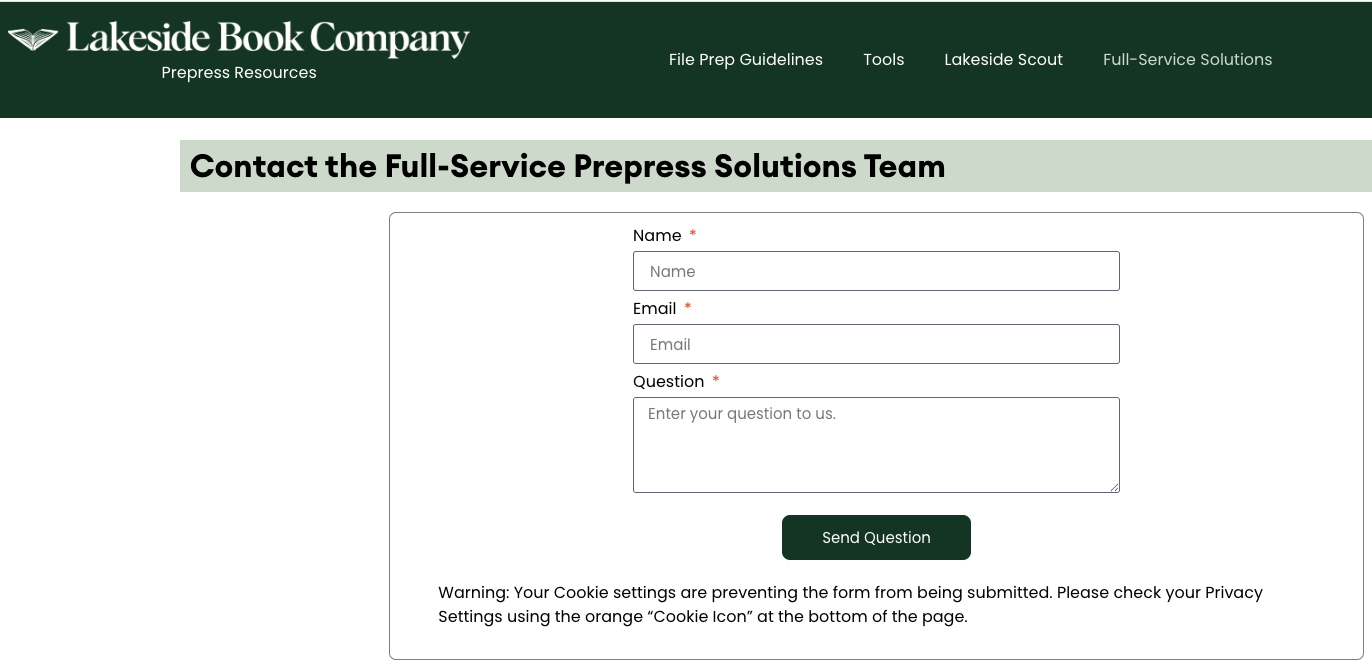
Clicking the "How can I view knowledge base articles?" button will bring up a link to the Knowledge Base articles. Clicking the link will take you to the Knowledge Base Articles home screen here you can choose which articles you want to read.
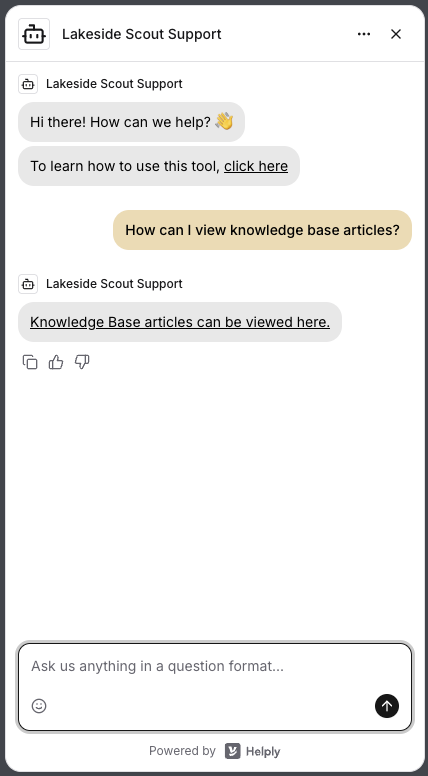
Need to access our full-service solutions? button
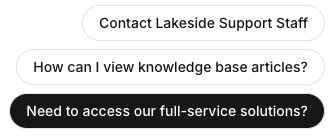
Clicking the "Need to access our full-service solutions?" button will bring up a dialog box with a link to click for more information about our full-service solutions.
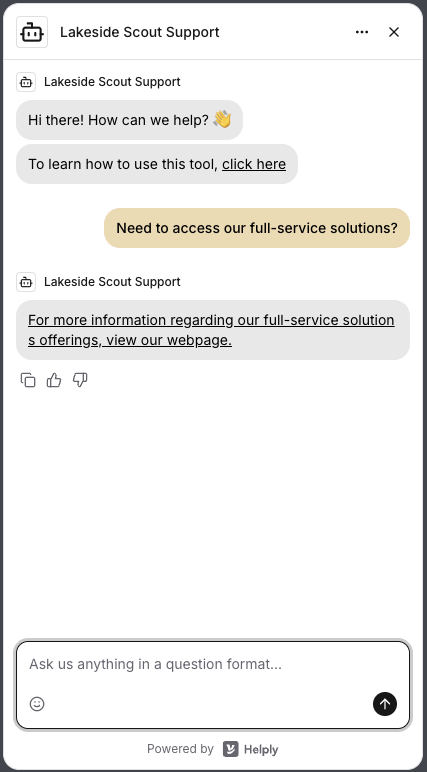
Full-service solutions form
Clicking the link will bring up a form that will need to be filled out so our full-service solutions staff can take the appropriate actions based upon your individual needs.
Interactive Search
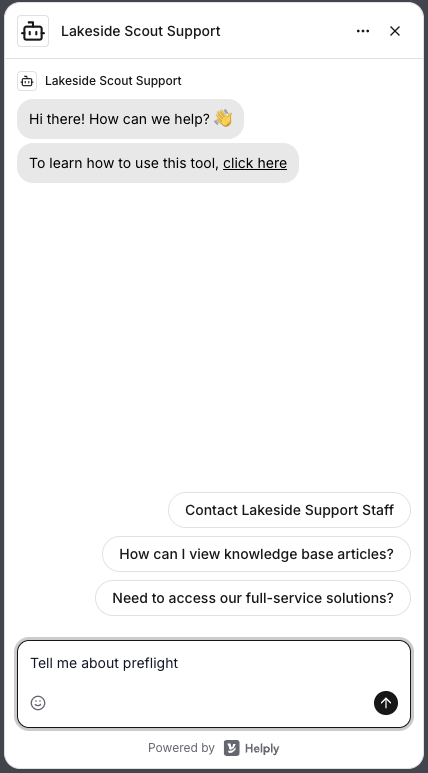
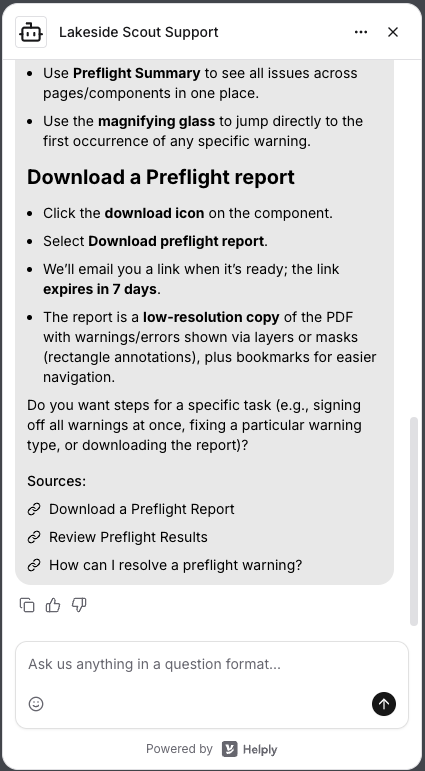
You may type a phrase or question. For this example, I typed “Tell me about preflight” and then clicked the up arrow icon to see the results. Helply will compile a summary of the results and will display the links to the supporting articles at the bottom of the results. You may browse the supporting articles by clicking the links, you may ask another question, or you may click the three dots at the top right of the window to either Reset the Conversation or to Close it.
... (3 Dot) Options
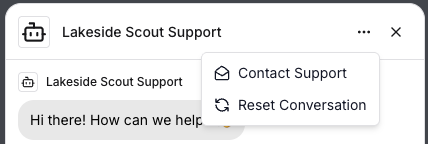
When you click the ... three dots in the top right side of the window, you’re presented with a drop down list with three options to choose from:
Contact Support - This option brings up the Lakeside Scout Support request window
Reset Conversation - This option brings you back to the original search window
X located next to ...(3 Dot) Options
Clicking the X option closes or minimizes the Helply window altogether