

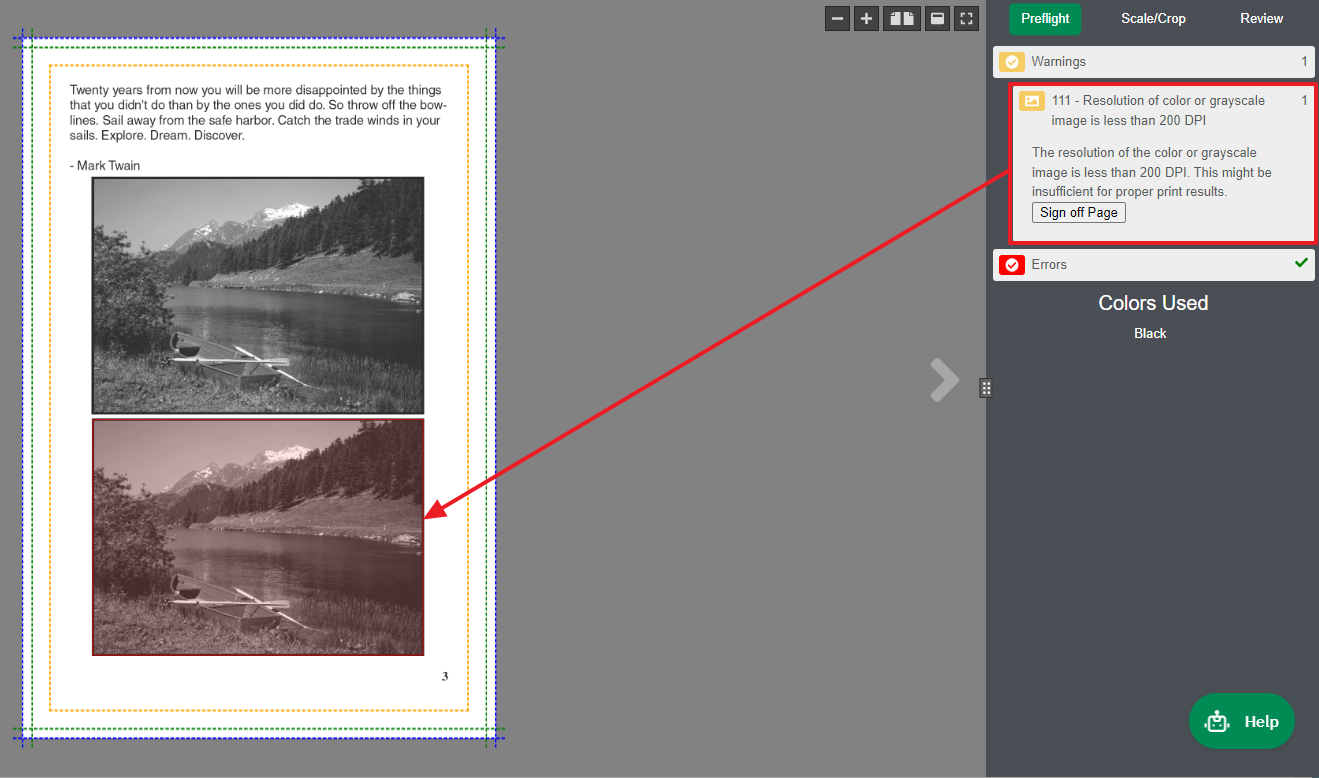
A preflight warning on a page can be signed off as being okay as is or fixed, if applicable, using the system's preflight tools. You can review the warning message for a detailed description and see the location of the problem on the page. Warnings can be addressed by clicking the 'Sign Off Page' button in Proof mode, or more quickly on a global level through the Preflight Summary window. If issues can be fixed, the button will display 'Fix'.
Since page-by-page sign-offs can be a time-consuming task, the Preflight Summary page provides the quickest way to resolve or approve recurring issues globally—such as low-resolution screen grabs or small text in common footnotes—that you may already be aware of. You can access the Preflight Summary window by clicking the Preflight Summary link in the top-right corner of the title banner as shown here.
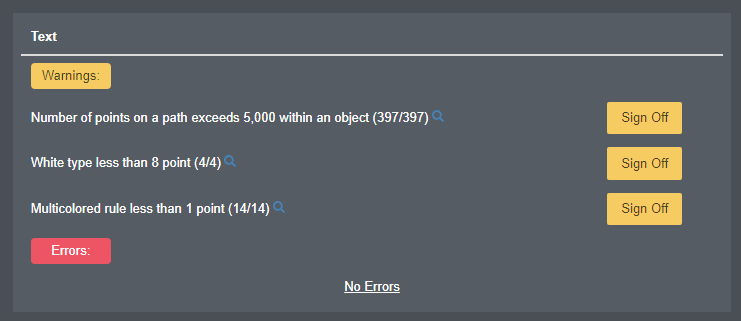
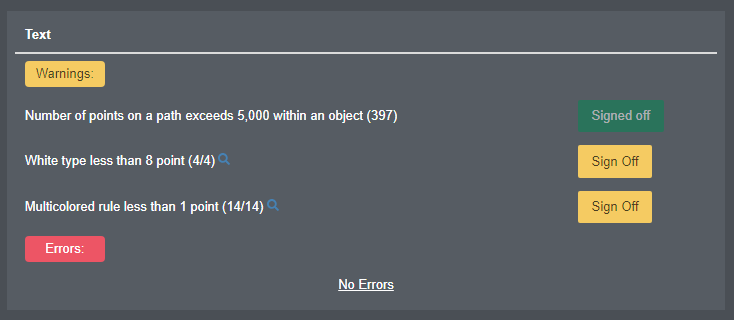
In this text component example, multiple warnings are listed in the Preflight Summary page, each with its own Sign Off button. Once you click the Sign Off button, it will change to Signed off, indicating that all warnings related to this issue for that specific component have been waived.
See this article for more details about preflight results.