

After file upload, Lakeside Scout will immediately begin to process and perform an initial preflight on your PDF files for file integrity, (e.g., fonts not embedded, non-press color spaces, low resolution images, etc.).
For details on best file preparation practices, please see https://prepress.lakesidebookcompany.com/lakeside-prepress/book/
Note - issues may still arise during the Approve to Print specification check such as trim size mismatch or the number of pages and/or number of colors not matching the provided specs. These items are not checked during the initial preflight stage. If there is a mismatch in the number of colors, you can download a PDF proof and preview color separations using the output preview function in Acrobat. See Acrobat's documentation for help with this function.
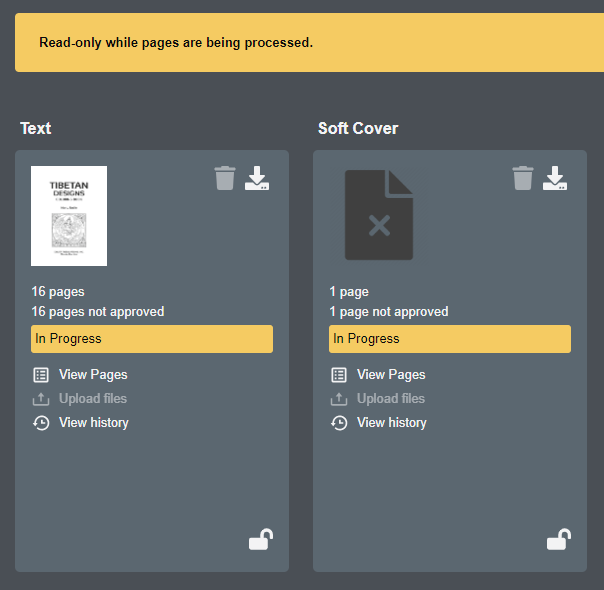
You will not be able to view pages in proof mode as no changes can be made given preflight is in process. All preflight issues should be resolved before officially proofing and approving proofs.
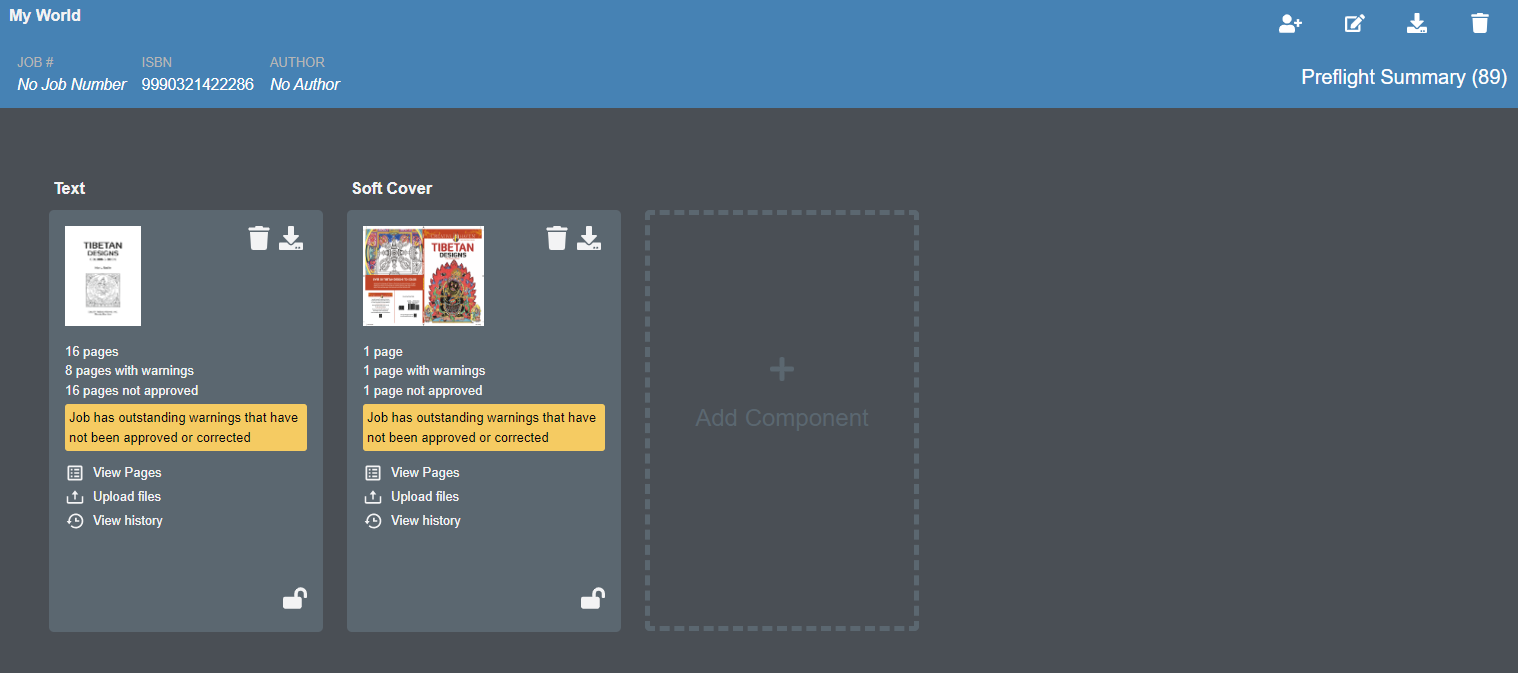
Once the preflight process is complete, each component card will indicate if issues were discovered. There are a few ways to view the results, with the most popular being the Preflight Summary, which you can access by clicking the Preflight Summary link in the upper-right corner of the title information banner.

The Preflight Summary window lists overall issues discovered with each component. You can quickly sign off on common issues or even fix those issues that can be fixed.
In this example, multiple warnings are listed in the Preflight Summary window, each with its own Sign Off button. Once you click the Sign Off button, it will change to Signed Off, indicating that all warnings related to this issue for the component have been waived.
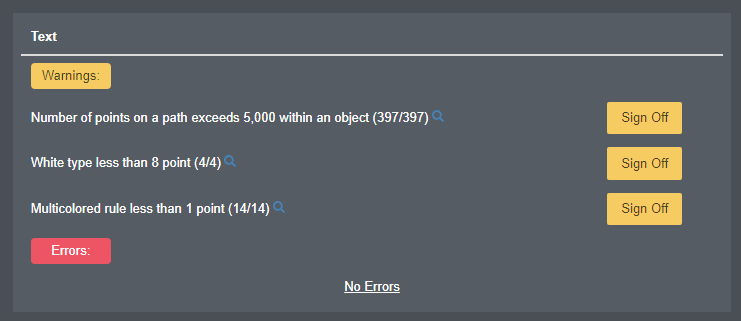
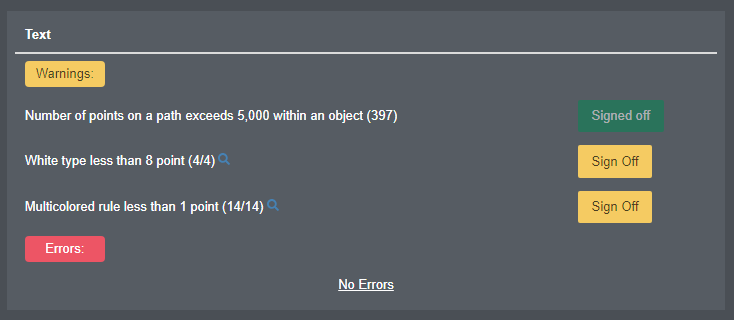
In the event you want to see specifically where the issue is within the supplied files, click on the magnifying glass icon that is inline with the listed issue. You will be directed to the first page where this specific issue is found.
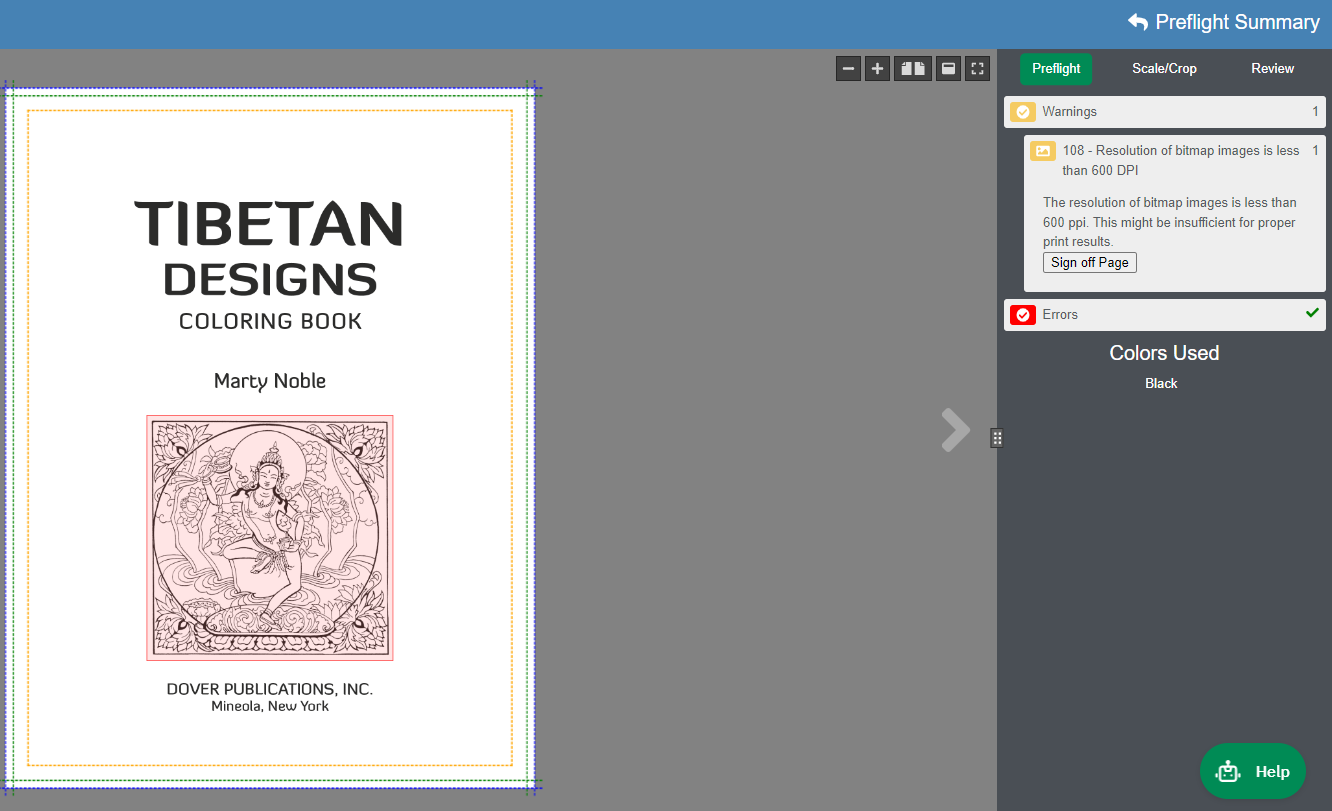
Clicking on the specific issue in the upper-right corner will place a transparent, red box around the discovered issue. Along with the reported issue, Lakeside Scout will inform you of the associated risk.
You can opt to sign off (or fix if applicable) the issues found on this specific page by clicking the 'Sign off Page' button. Navigating back to the Preflight Summary is quickly done by clicking on the 'Preflight Summary' link in the upper-right corner.
Since page by page sign offs can be a time-consuming task, the Preflight Summary page provides the quickest way to resolve or approve recurring issues globally—such as low-resolution screen grabs or small text in common footnotes—that you may already be aware of.
IMPORTANT
All preflight issues must be resolved before approving proofs. Currently, all proofs within Lakeside Scout must be approved before the Approve to Print button will appear.
To view the entire list of warnings and errors along with the risk and resolution for each, see the Preflight Results Explained article for details.
Once all preflight results have been resolved, please approve all pages. See the Approving proofs article for details.