

Note - If Chrome is already configured to 'Allow all cookies', these instructions do not apply.
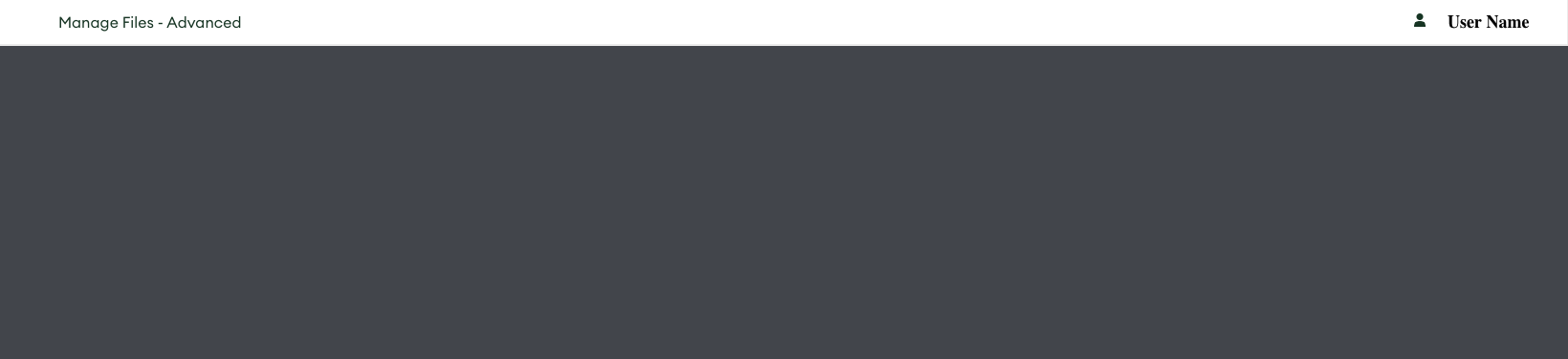
These instructions are only for users that have an issue where the site doesn't properly load. Generally there will be a white toolbar across the top of the screen but there will be no content below and only a gray, blank or white screen will be displayed.
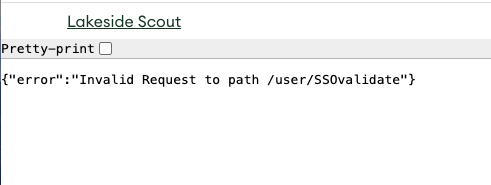
Additionally there may also be a message stating {"error":"Invalid Request to path /user/SSOvalidate"}
To resolve this issue take the following steps:
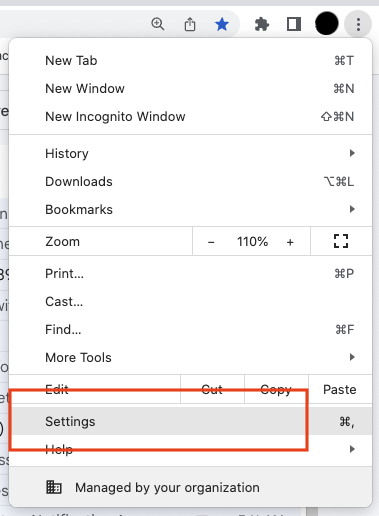
Open Google Chrome settings by selecting the 3 dots in top right corner and choose the Settings option.
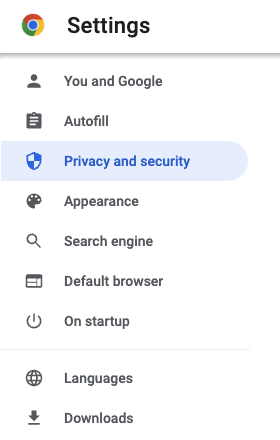
Click on Privacy and security on the left hand side.
Click on Third Party Cookies.
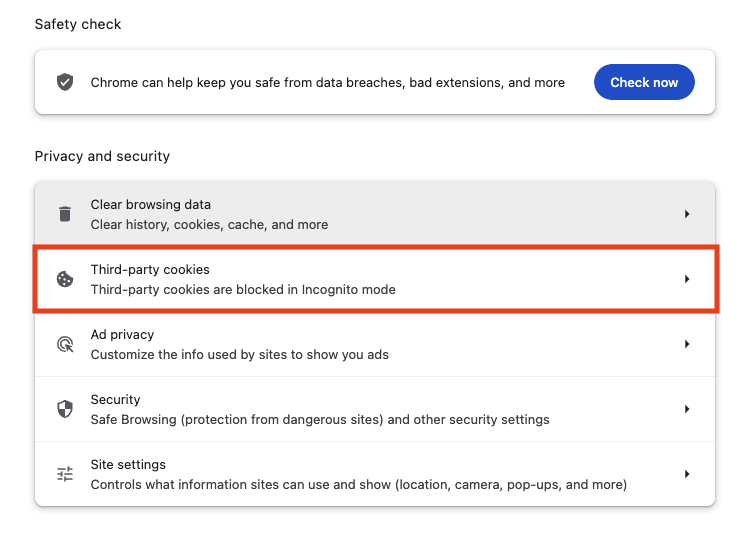
Locate the Sites Allowed To Use Third-Party Cookies section
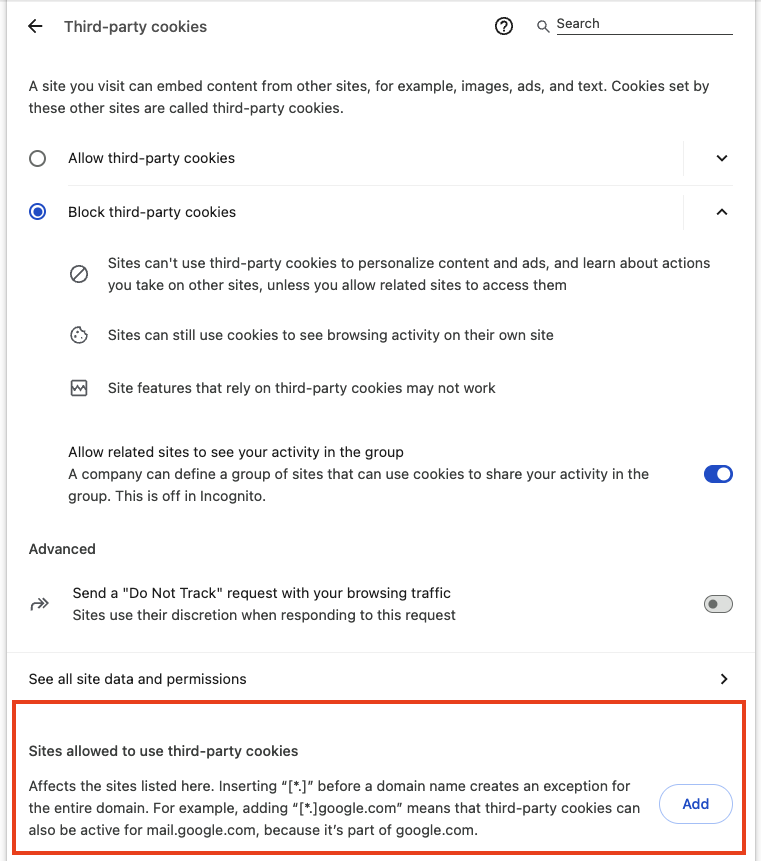
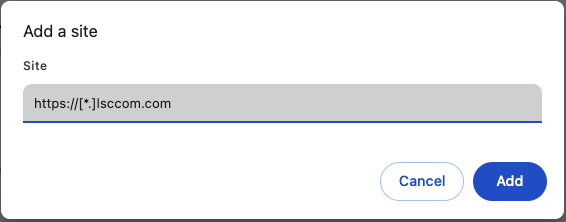
Click on the Add button and add this URL https://[*.]lsccom.com
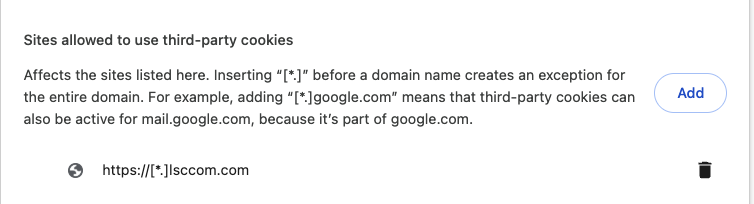
The new URL https://[*.]lsccom.com should now appear in the users allow list for the site as indicated by a trash can icon next to to the entry.
Close Chrome settings and log in to Lakeside Scout.