

Lakeside Scout makes adding corrections simple while giving the user full control of placement within the book. Lakeside Scout has the ability to check out the entire title with all of the supporting components or a single component in the event you need to simply supply a new correction for the text component for example. See single component check out in the article Retrieving A Single Component For Making Reprint Corrections.
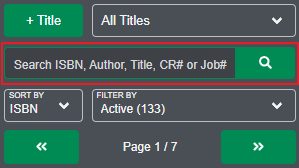
Start by searching for your title via ISBN, Author, Title, Lakeside Book Company Job number or the CR (customer reference) number which is most commonly associated with a customer that does not use an ISBN but rather may use something like a SKU, product code, etc.
Retrieval Request
In the event Lakeside Scout does not find your previously-printed title, the user will be prompted with a Request Files button. Details can be found in the article Request Files from Lakeside Book Company Archives
Title Located
If your title is not checked out and available to make corrections, the Check out icon will appear in the upper-right corner of the title banner.
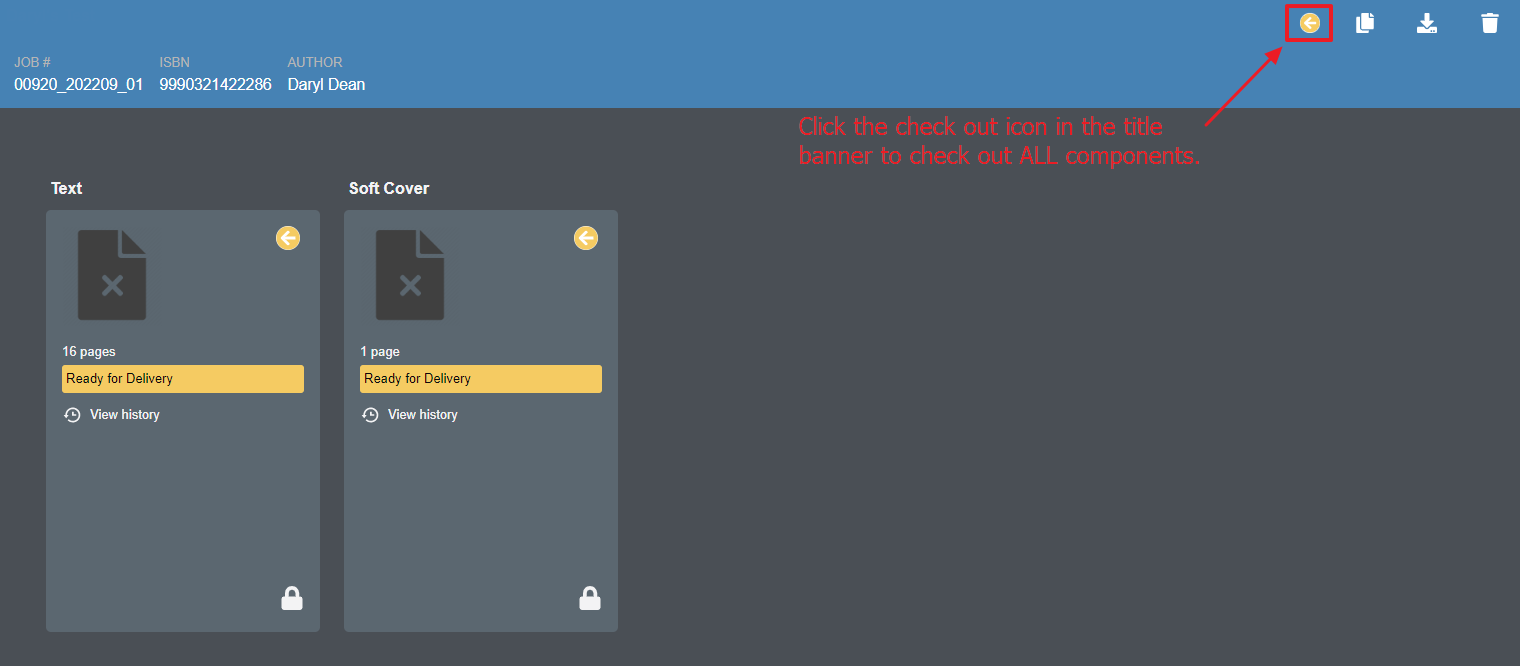
If this icon is present, click the Check out icon to retrieve the entire title. Lakeside Scout will inform the user that the title is being checked out and unlocked to allow for necessary corrections.
Once the title is checked out of the repository, the title will look different. The user will notice thumbnails, the ability to upload files, view pages and the Check out icons will disappear. All components will have an unlocked icon in the bottom-right corner.
NOTE: The user may need to click on the title again from the list of titles in order to see this change.
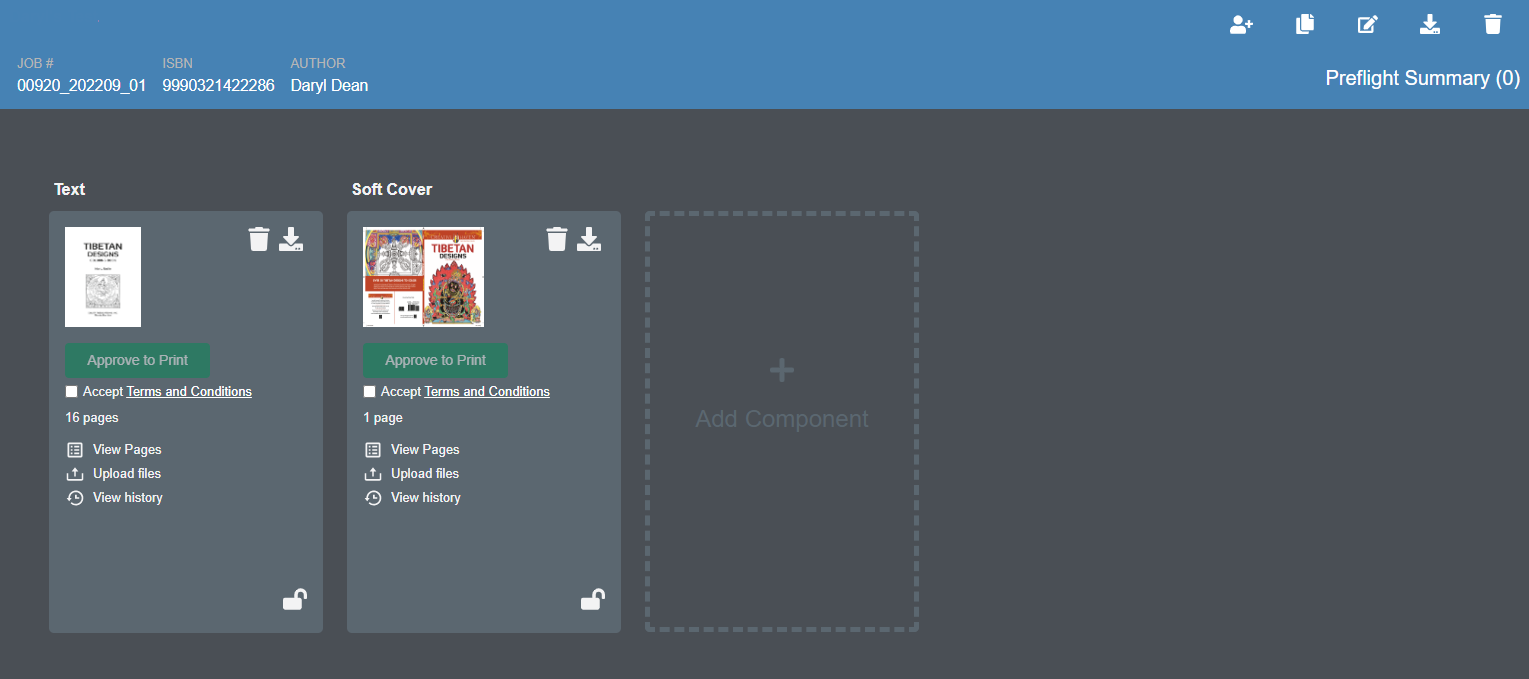
Corrections can now be made to the components and continue with the process to check all components back IN, (i.e., resolve any preflight issues, approve the position/content and Approve to Print).
See the article Making Corrections for details on replacing corrections pages.