

Google Chrome (PC)
From within the Google Chrome application with your browser at https://thepublishershub.lsccom.com/scout
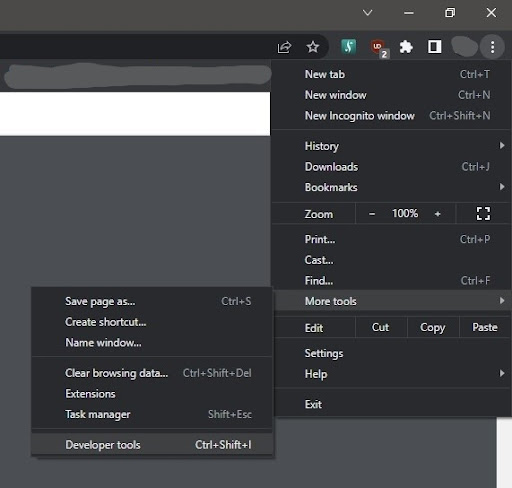
go to the 3 Dots menu in the top right of the browser and select
More tools→Developer Tools
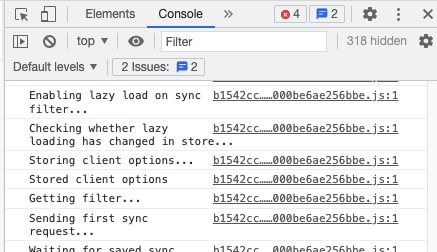
This will open a panel on the right hand side of the browser that will look like this:
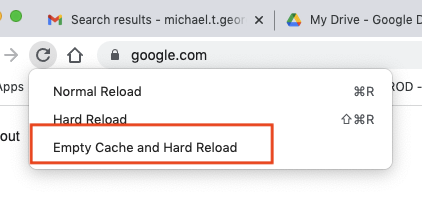
While that panel is open, locate the refresh button and right click on the button. Click on the option that states “Empty Cache and Hard Reload” to clear the cache and reload the browser.
After the browser finishes the refresh, attempt to use Lakeside Scout as normal.