

Downloading a Preflight report creates a low resolution copy of the original PDF whereby objects identified as a warning and/or error are shown with layers or by masks (rectangle annotations). Additionally, bookmarks are included to make navigation easier.
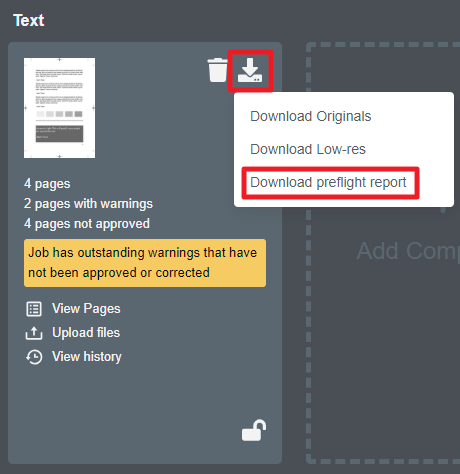
To download a Preflight report, click the download icon on the desired component. Then, click the 'Download preflight report' link. In this example, the report will be generated on the Text component.
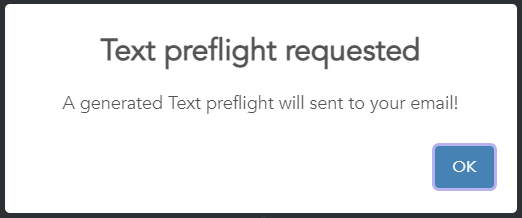
A popup window will inform you the preflight report has been requested.
You will receive an email, with a link to the report, when it is ready for download. The link expires in seven days from receipt of the email. Clicking the link will download a PDF file to the location as configured by your web browser.
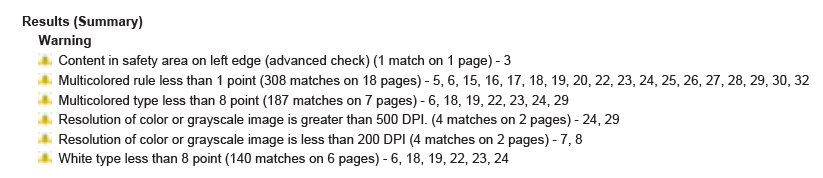
Open the PDF report in Acrobat. The first page of the report displays a summary of the identified warnings and/or errors.
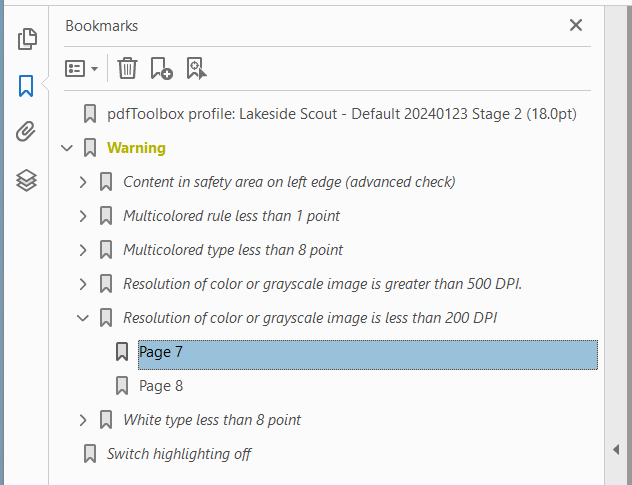
The Bookmarks panel will list the identified warnings and/or errors along with the bookmarked page number as shown here. See Acrobat's documentation for help with bookmarks if needed. Note - the name of the preflight profile along with identified warnings and/or errors may not match the panel below or may show different parameters depending on your account configuration.
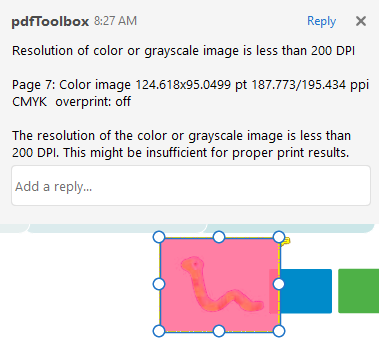
Clicking on a bookmarked page number will open that page displaying a mask around the identified object(s). Note - depending on the size of the object, you may need to change the zoom magnification in Acrobat to see the mask. Hovering over the mask will display information pertaining to that warning or error. If the comment does not display in its entirety, click on the comment icon adjacent to the mask to see the full message as shown in the example below. See Acrobat's documentation for help with comments if needed.
You also have the option to turn Layers on and off to see all problems (default) or to isolate specific ones. See Acrobat's documentation for help with layers if needed.
